
Resize the windows your way.
Drag the divider to give either page more room. Turn your device sideways and the windows sit side by side.
One screen. Two windows.
Keep a live stream playing while you follow the conversation on X. Look up something from the news. Put both pages on one screen, without switching apps.
The new 2mado is getting ready to launch.
For iPhone and iPad / iOS 17 or later
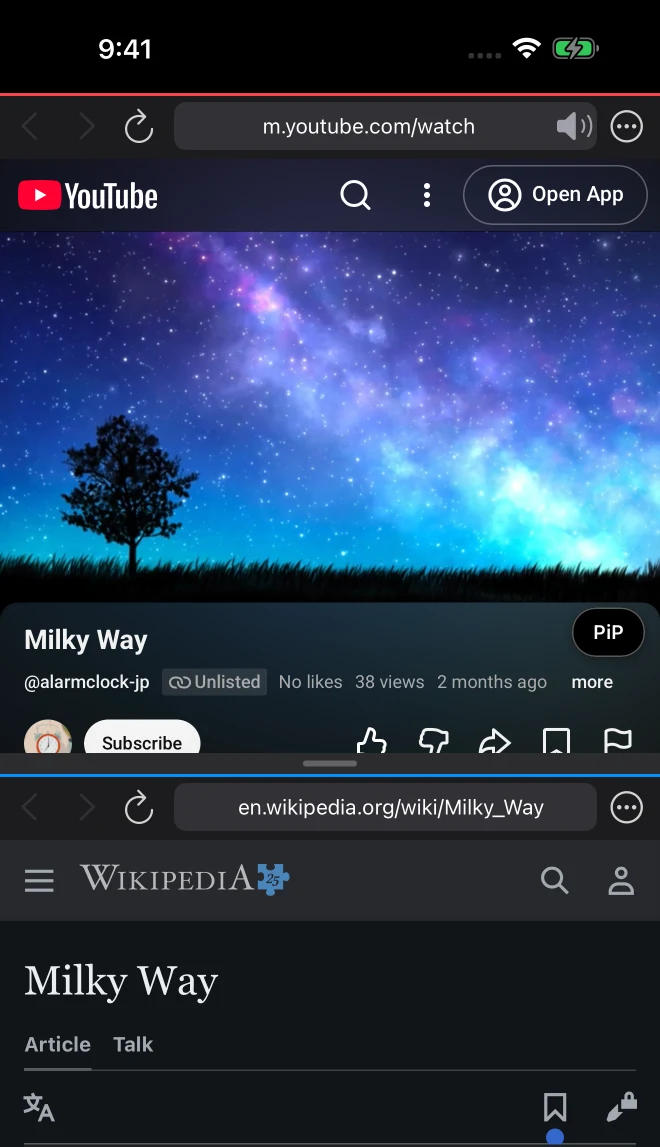
Both windows are regular browsers.
Use each page just the way you normally would.
Drag the divider to give either page more room. Turn your device sideways and the windows sit side by side.
Double-tap the divider to swap the windows. Show one window full screen, then bring both back in a tap.
Each window has back, forward, reload, and an address bar. The same pages are ready when you open the app again.
Keep YouTube in a small window, play sound in both windows, and more.
Video on top, search or social below. Drag the divider to resize.
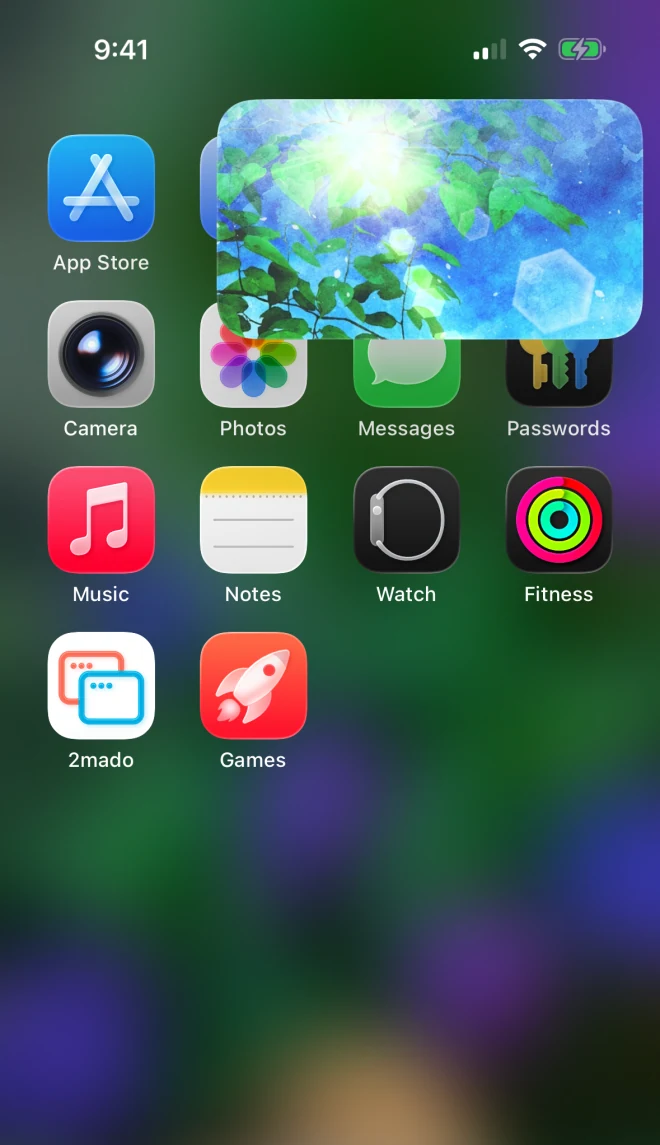
Tap “PiP” below the video to keep watching in a small window.
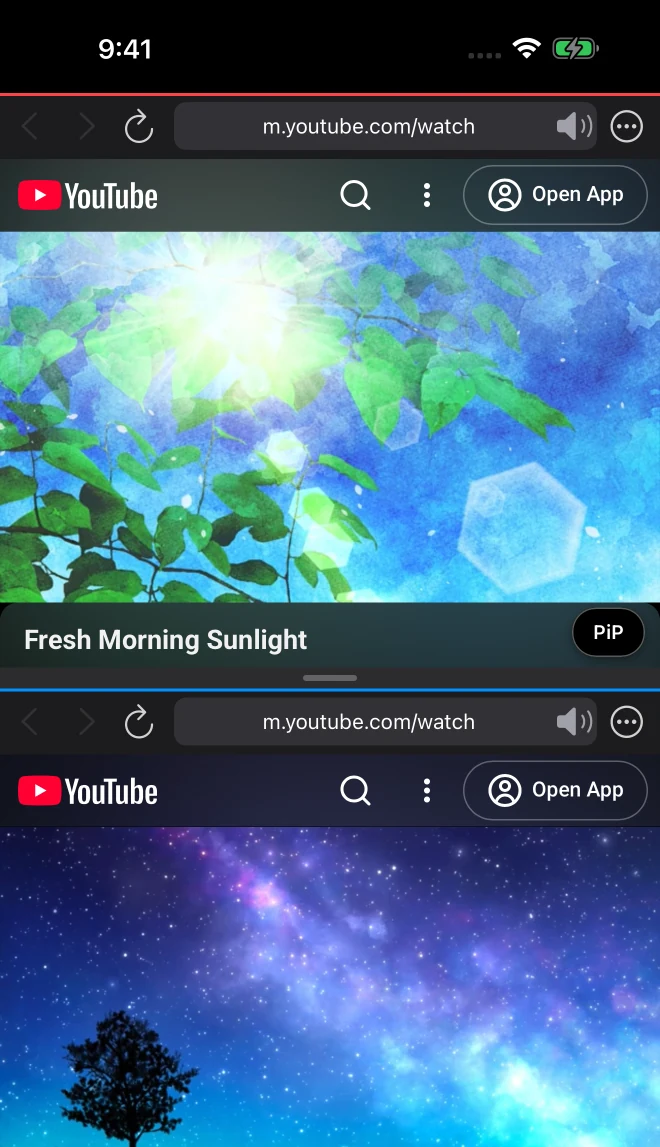
Play music as you watch another video. Both keep playing, with sound.
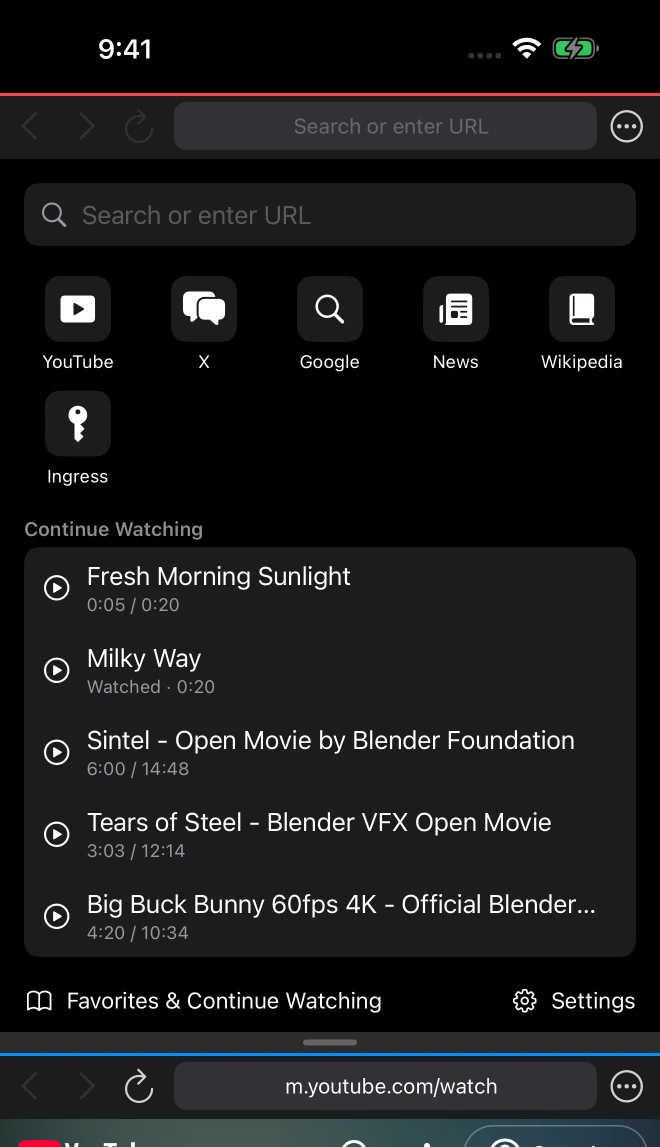
Saves your place in YouTube videos. Keeps watched videos in your history.
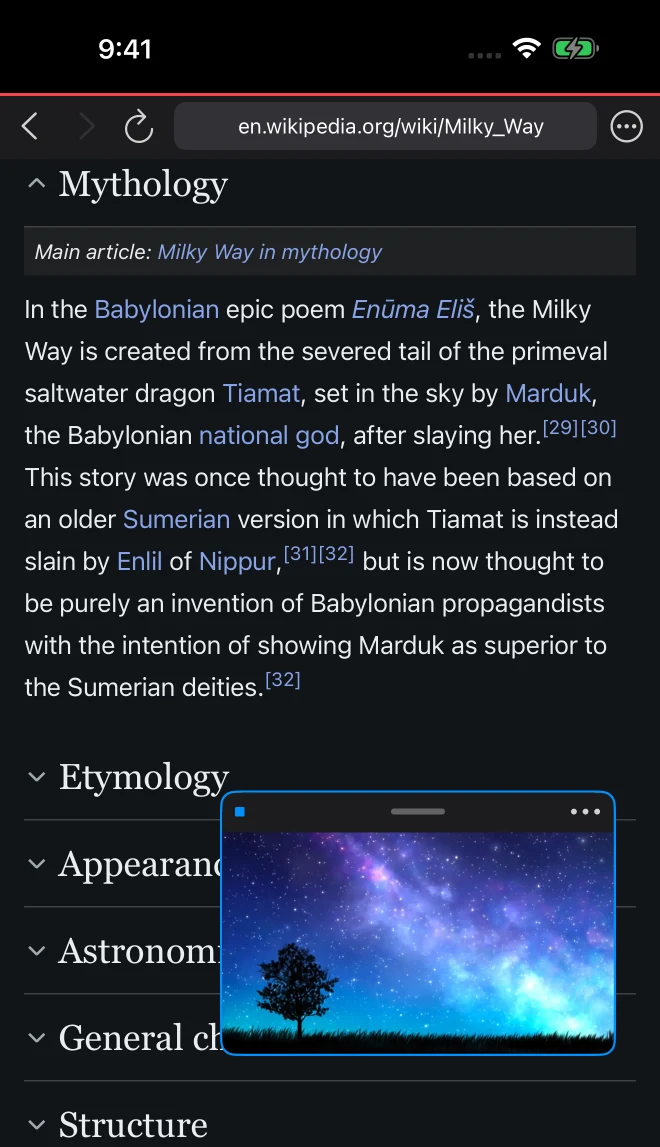
Float one window over the other in-app. Requires a 2mado Pro subscription.
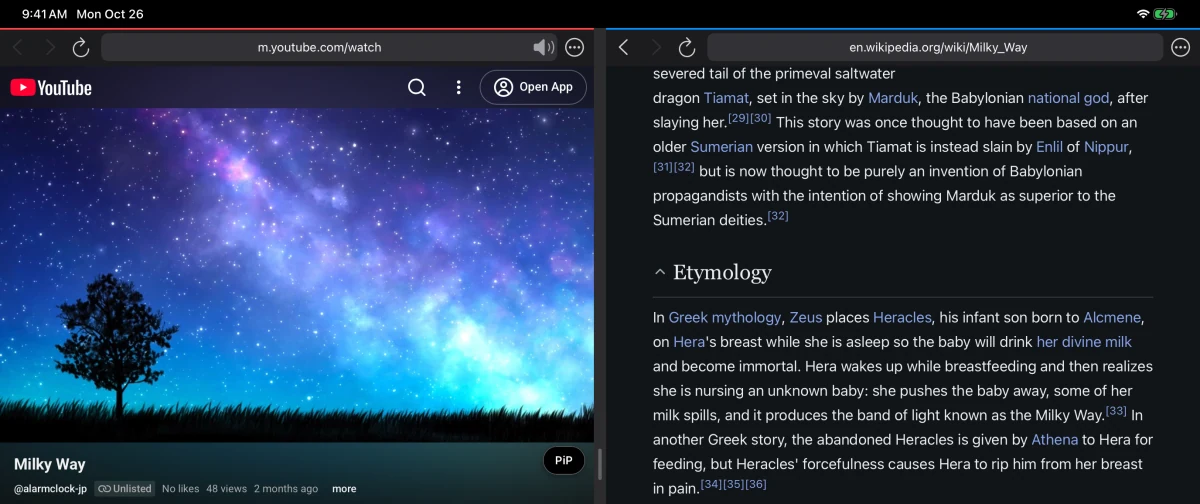
Video on the left, search or social on the right. Drag the divider to resize.
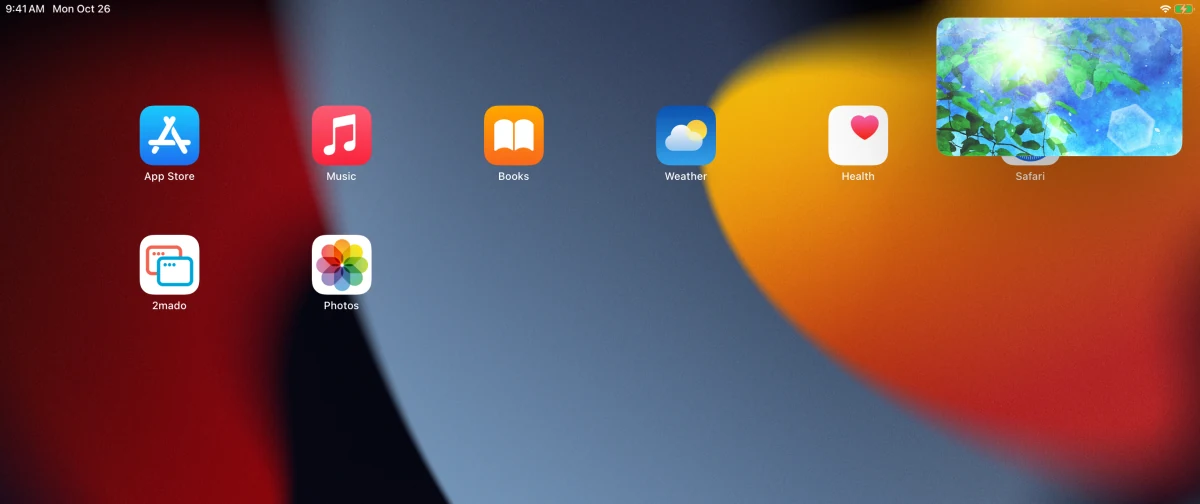
Tap “PiP” below the video to keep watching in a small window.
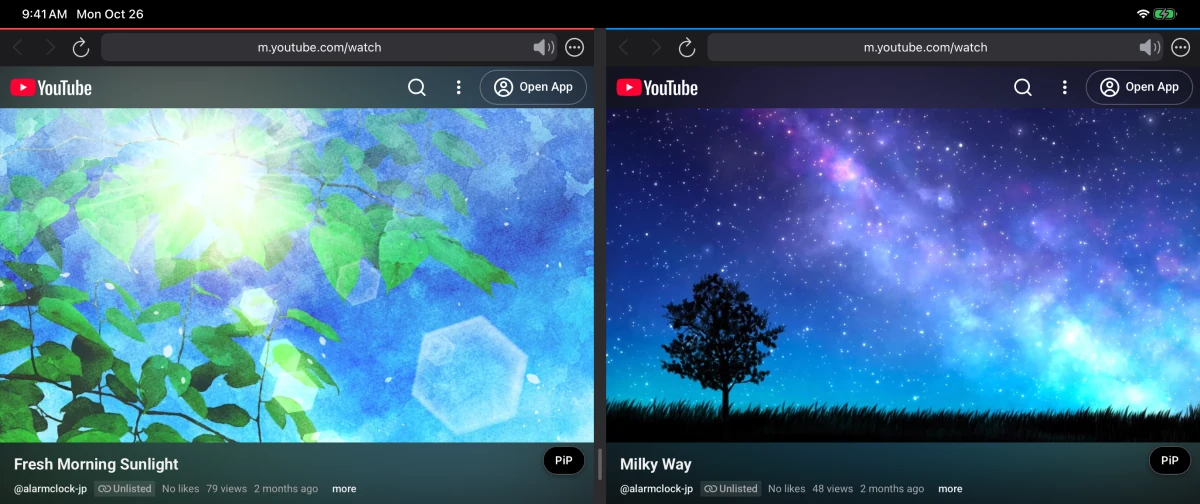
Play music as you watch another video. Both keep playing, with sound.
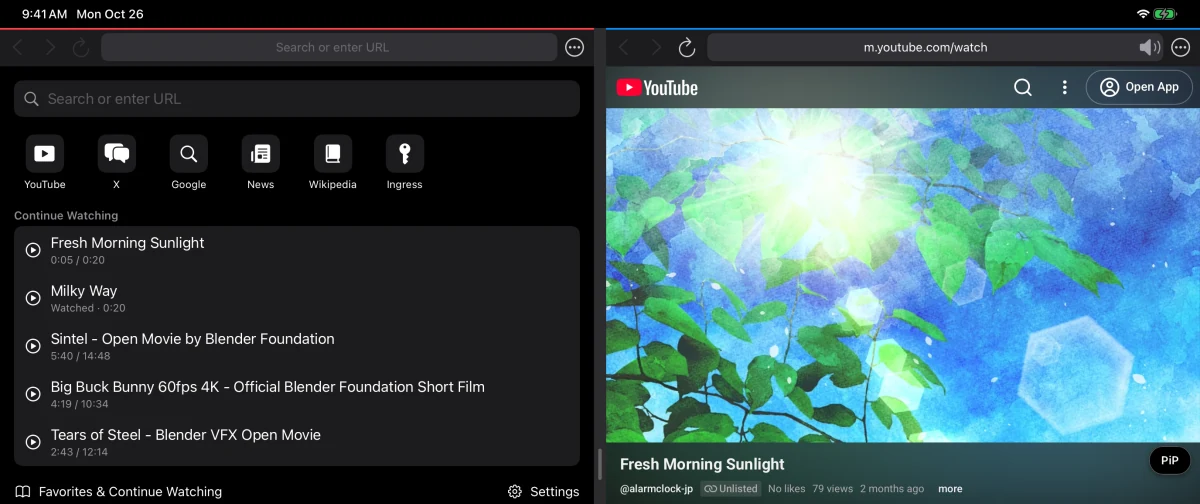
Saves your place in YouTube videos. Keeps watched videos in your history.
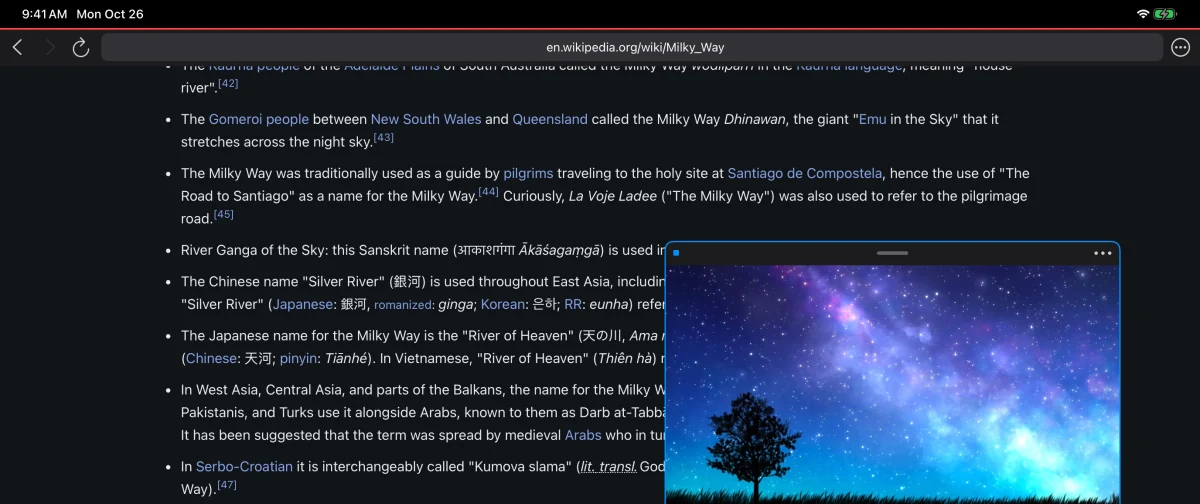
Float one window over the other in-app. Requires a 2mado Pro subscription.
Scroll sideways to see all five screens. Select an image to enlarge it. Screenshots show part of the screen.
Little conveniences for watching videos and getting back to the pages you use most.
Start with a search field and shortcuts to YouTube, X, Google, News, and Wikipedia. Save the pages you visit most to Favorites.
Lock one window or the entire screen to prevent accidental taps and scrolls. Long-press to unlock.
Mute each window separately. On YouTube live streams, tap “Chat” to show the chat below the video.
2mado Pro
A stream and X, or the news and search.
With 2mado Pro, save your favorite setup and open it in a tap.
Choose a monthly or yearly subscription.
The yearly plan includes a 1-week free trial.
Expand one window to full screen and float the other on top.
Save the window arrangement and both pages, then open them in a tap.
Keep your favorite pages and videos without a limit.
Sync Favorites, Continue Watching, and Layout Sets with your other iPhone and iPad.
Removes the ads shown on the Favorites and Settings screens.
The free version keeps 5 favorites and shows the latest 10 videos in Continue Watching. PiP, dual audio, and window locks are included for free.
The 2mado PiP button is made for YouTube. Use the “PiP” button below the video. Availability and playback behavior vary by site and video.
PiP keeps a YouTube video in a small window while you use other apps. Floating Window puts one browser window over the other inside 2mado, and requires 2mado Pro.
If you bought Remove Ads in the previous Nimado, no ads appear on the Favorites and Settings screens. On a new device, use Restore Purchases in Settings. The additional 2mado Pro features require a separate subscription.
The app has been rebuilt, and both windows are now regular browsers. Any window that opens YouTube gets the extra features automatically. To enter Ingress passcodes, tap “Ingress” on the Start Page.
Send us your questions, feedback, or bug reports.